← VolverSQS · Wholesale Perfume

How to Place Your Order

About 2 minutes · 12 easy steps · Works on any phone

Ships from U.S. warehouse — 5–7 day delivery

Red circles show you exactly what to tap

Prices, phone numbers and addresses are hidden (shown as asterisks) in these screenshots — your sales rep quotes you the current prices.

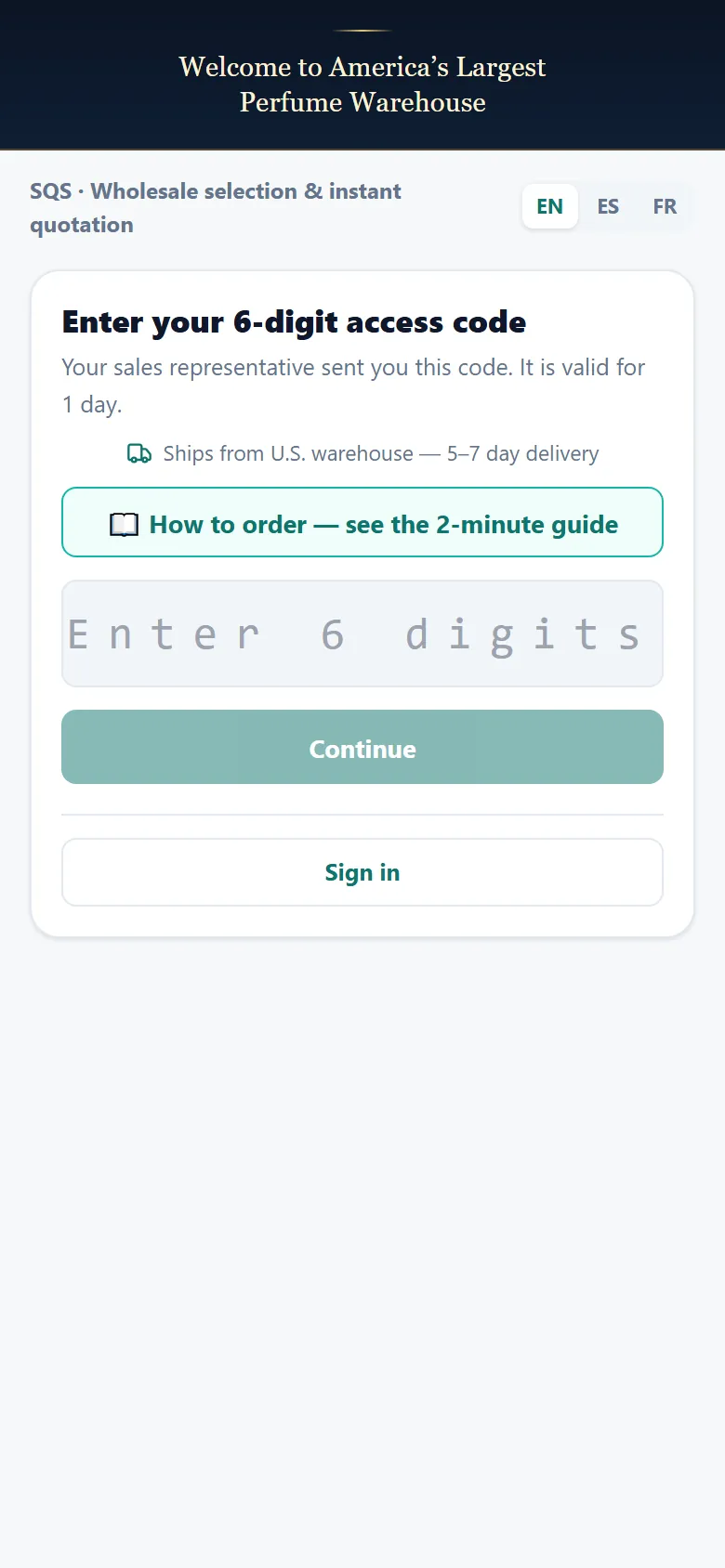
  1. Open your link

    Welcome page with the 6-digit access code box
    Welcome page with the 6-digit access code box

    Open the link your sales rep sent you — or go to otwmail.com.

    no hidden fields
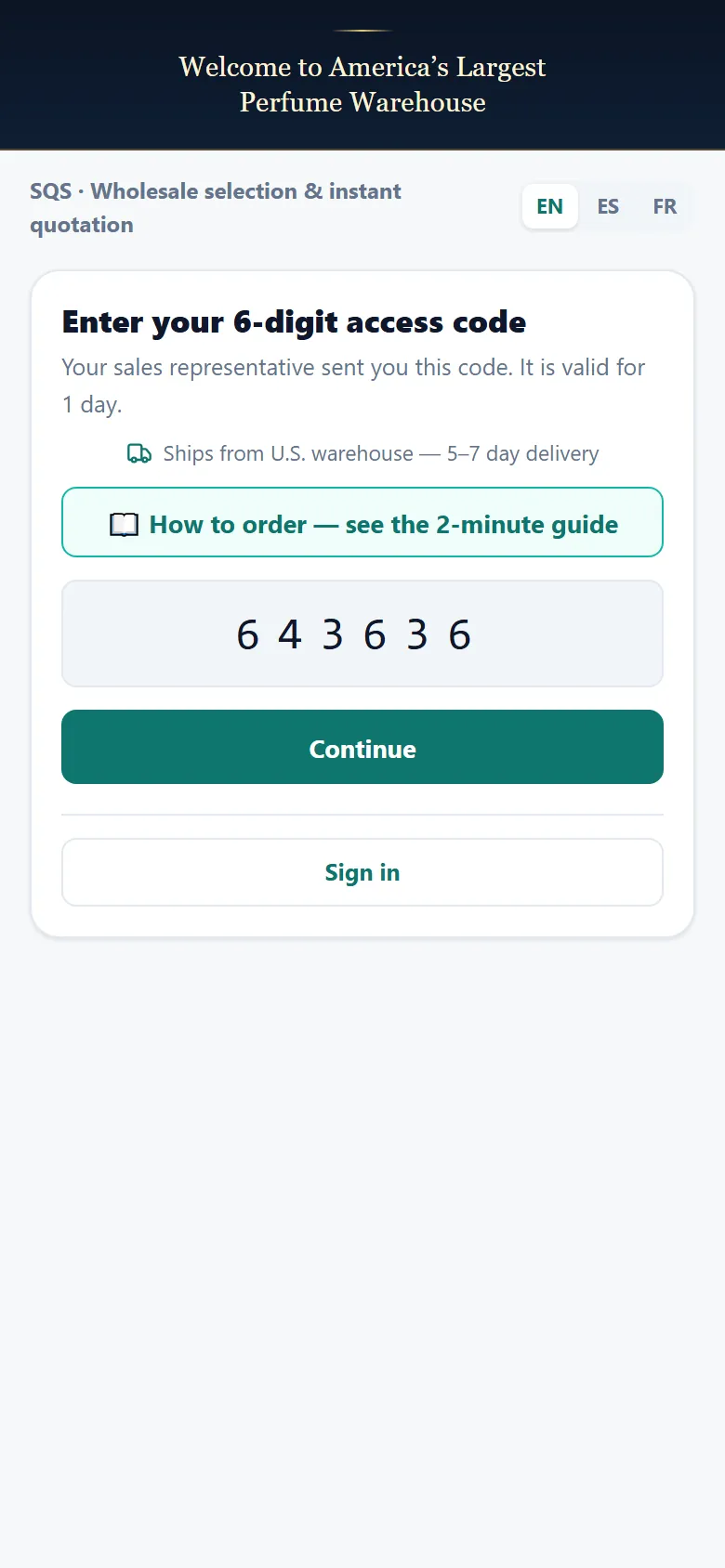
  2. Enter your code

    Six-digit access code typed into the box, Continue button below
    Six-digit access code typed into the box, Continue button below

    Type the 6-digit code from your rep, then tap Continue.

    no hidden fields
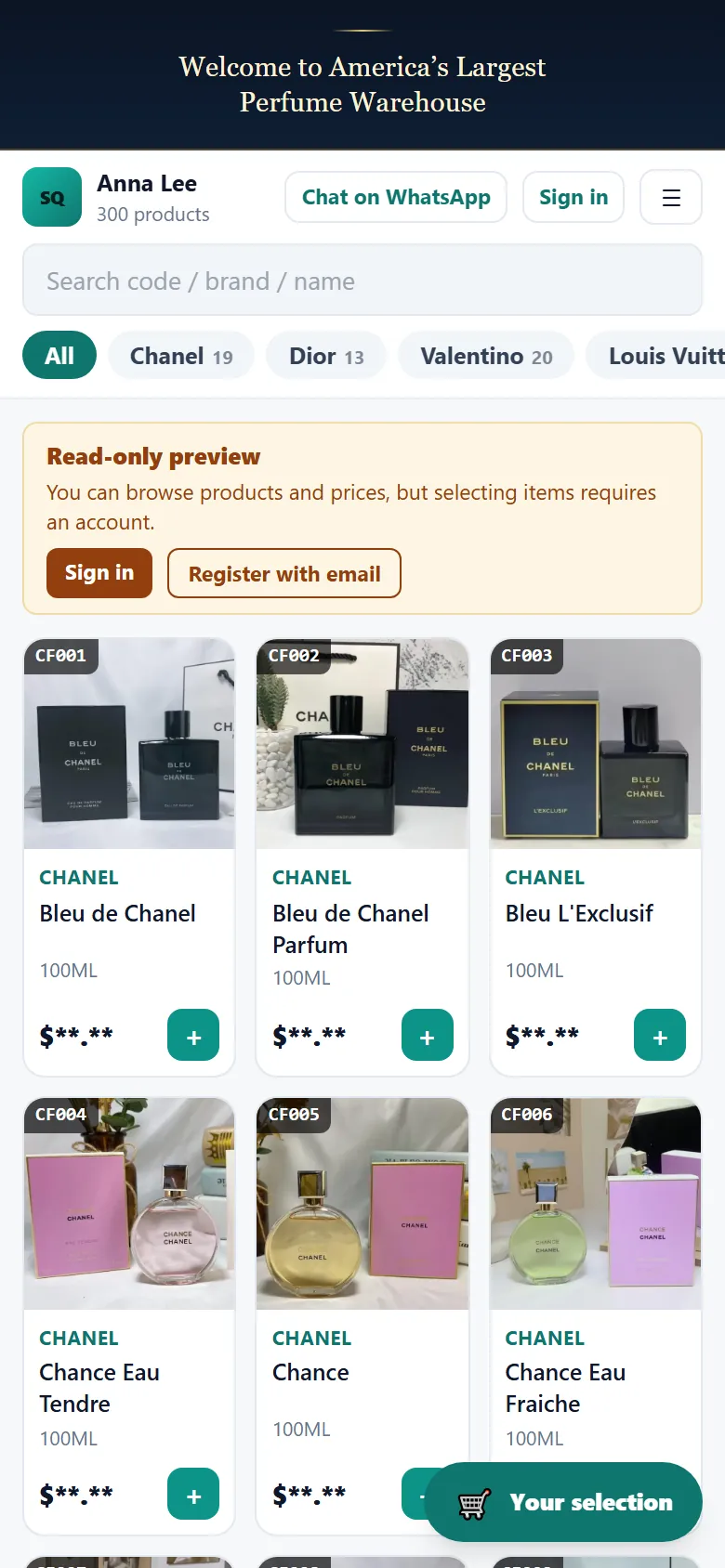
  3. Browse the catalog

    Catalog page with products in three columns and the prices greyed out
    Catalog page with products in three columns and the prices greyed out

    Wholesale prices, 3 products per row. Swipe up for more.

    some fields hidden (asterisks)
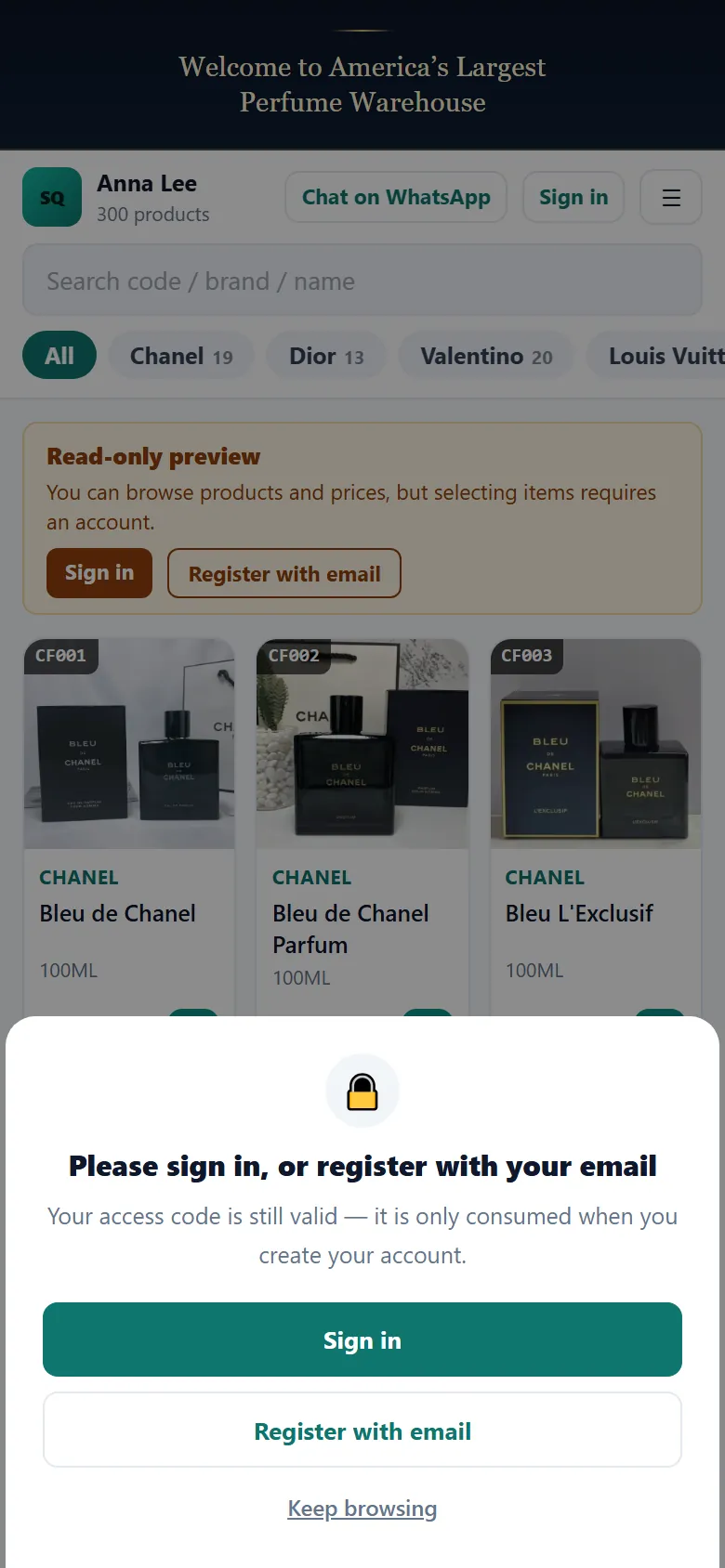
  4. Tap a product photo

    Prompt asking first-time visitors to sign in or register, prices greyed out
    Prompt asking first-time visitors to sign in or register, prices greyed out

    Tap any product photo. First-time visitors see this prompt.

    some fields hidden (asterisks)
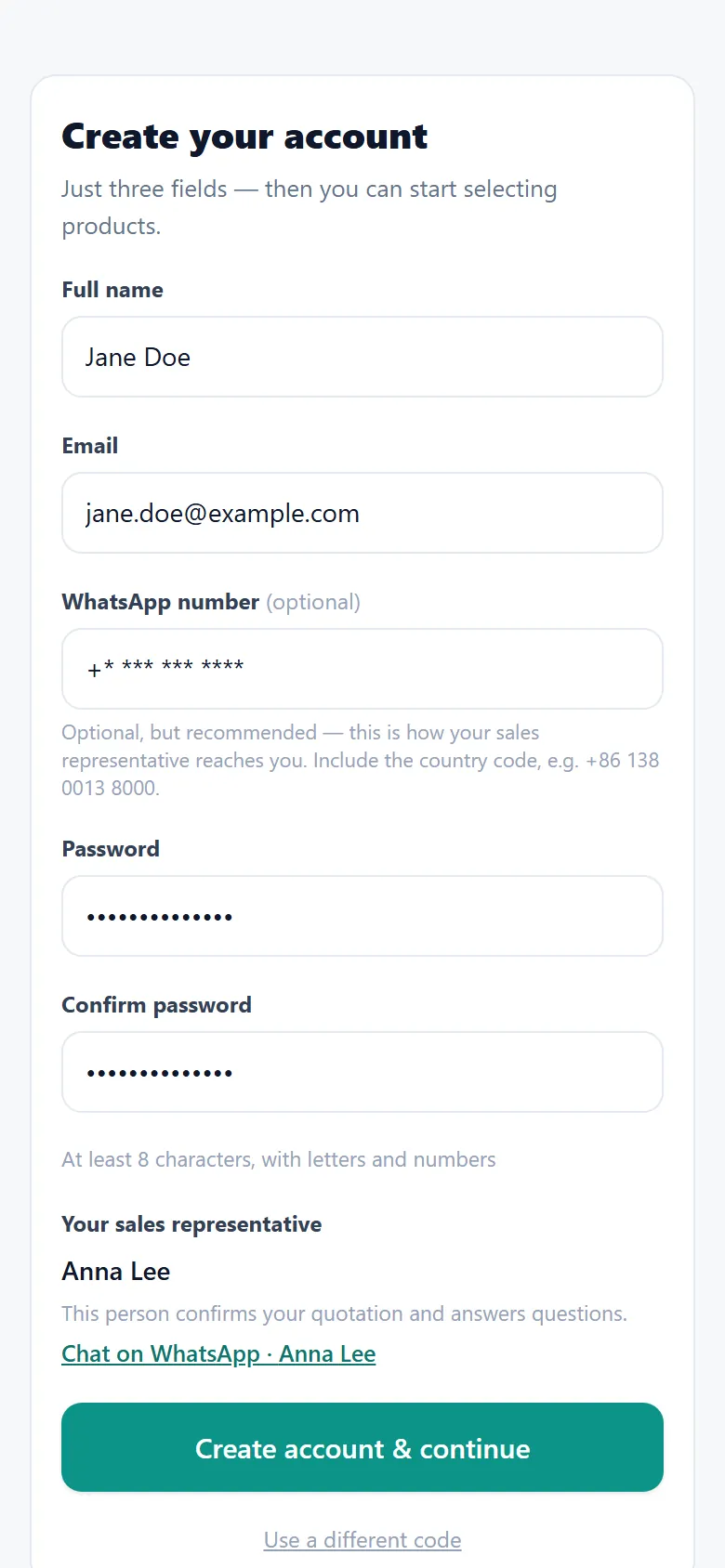
  5. Create your account

    Create your account form with name, email and WhatsApp number
    Create your account form with name, email and WhatsApp number

    Tap Register with email, then fill in the form. Add your WhatsApp number.

    some fields hidden (asterisks)
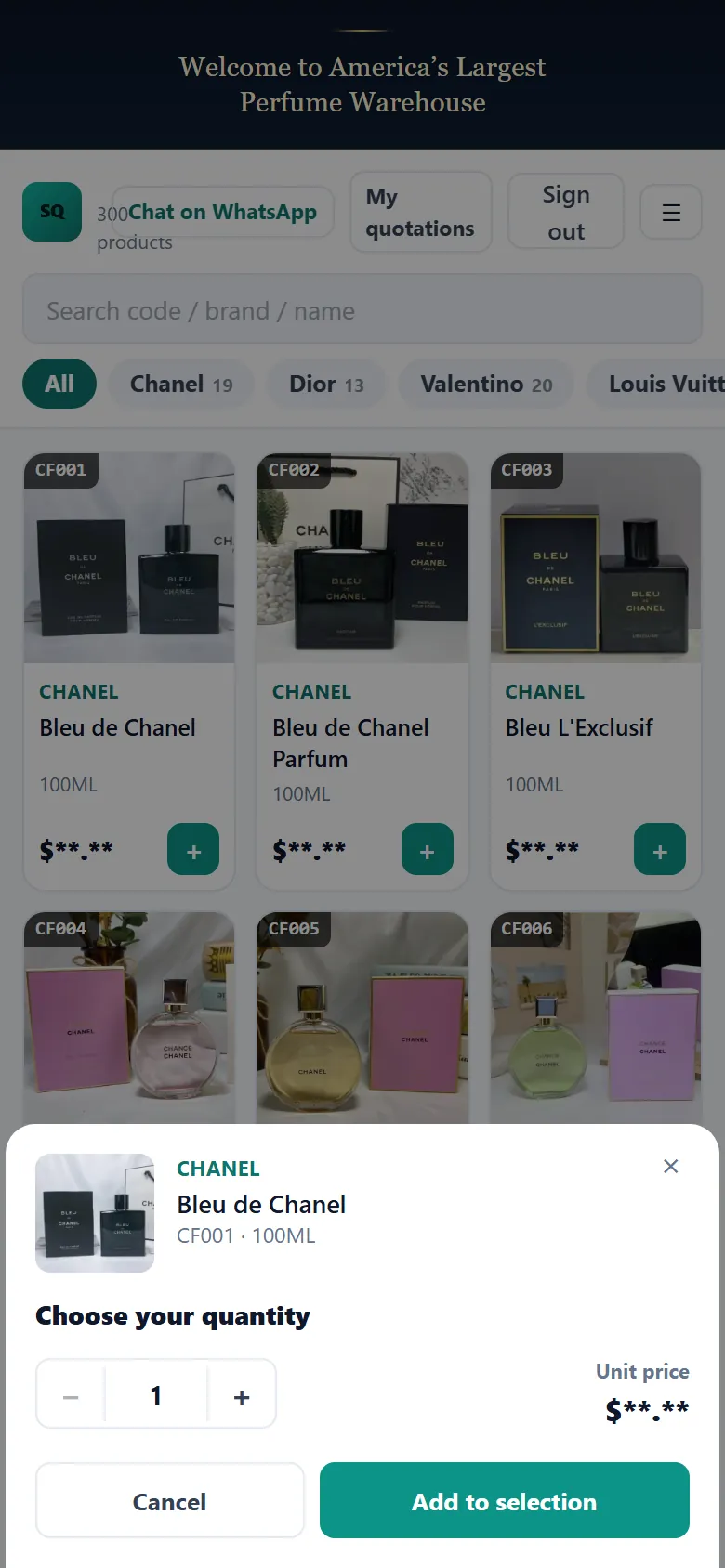
  6. Choose your quantity

    Quantity dialog with the unit price area greyed out
    Quantity dialog with the unit price area greyed out

    Set the quantity, then tap Add to selection.

    some fields hidden (asterisks)
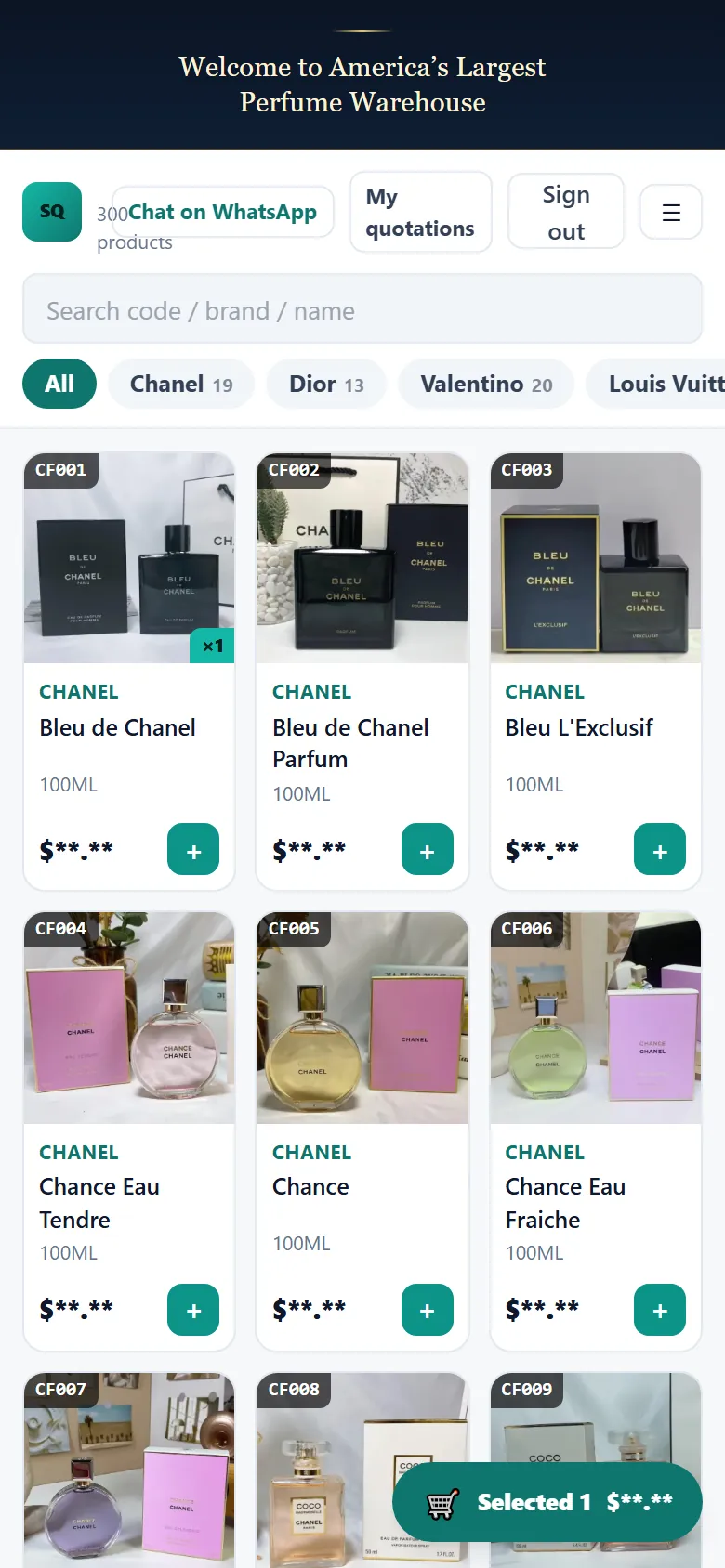
  7. Tap the cart

    Catalog with one product selected and the cart button at the bottom right
    Catalog with one product selected and the cart button at the bottom right

    Everything you pick is saved. Tap the cart button at the bottom right.

    some fields hidden (asterisks)
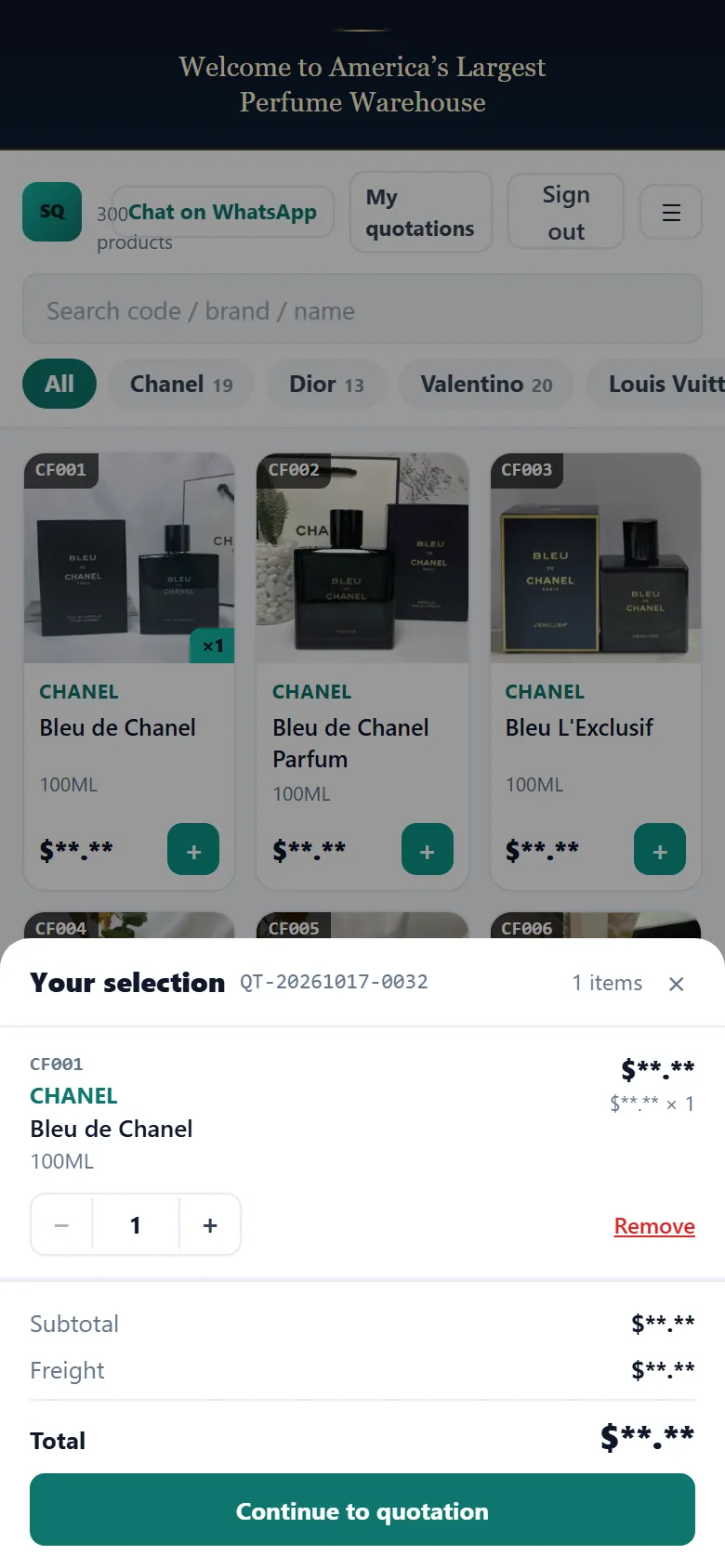
  8. Check your selection

    Your selection drawer with the amounts greyed out
    Your selection drawer with the amounts greyed out

    Check items and amounts, then tap Continue to quotation.

    some fields hidden (asterisks)
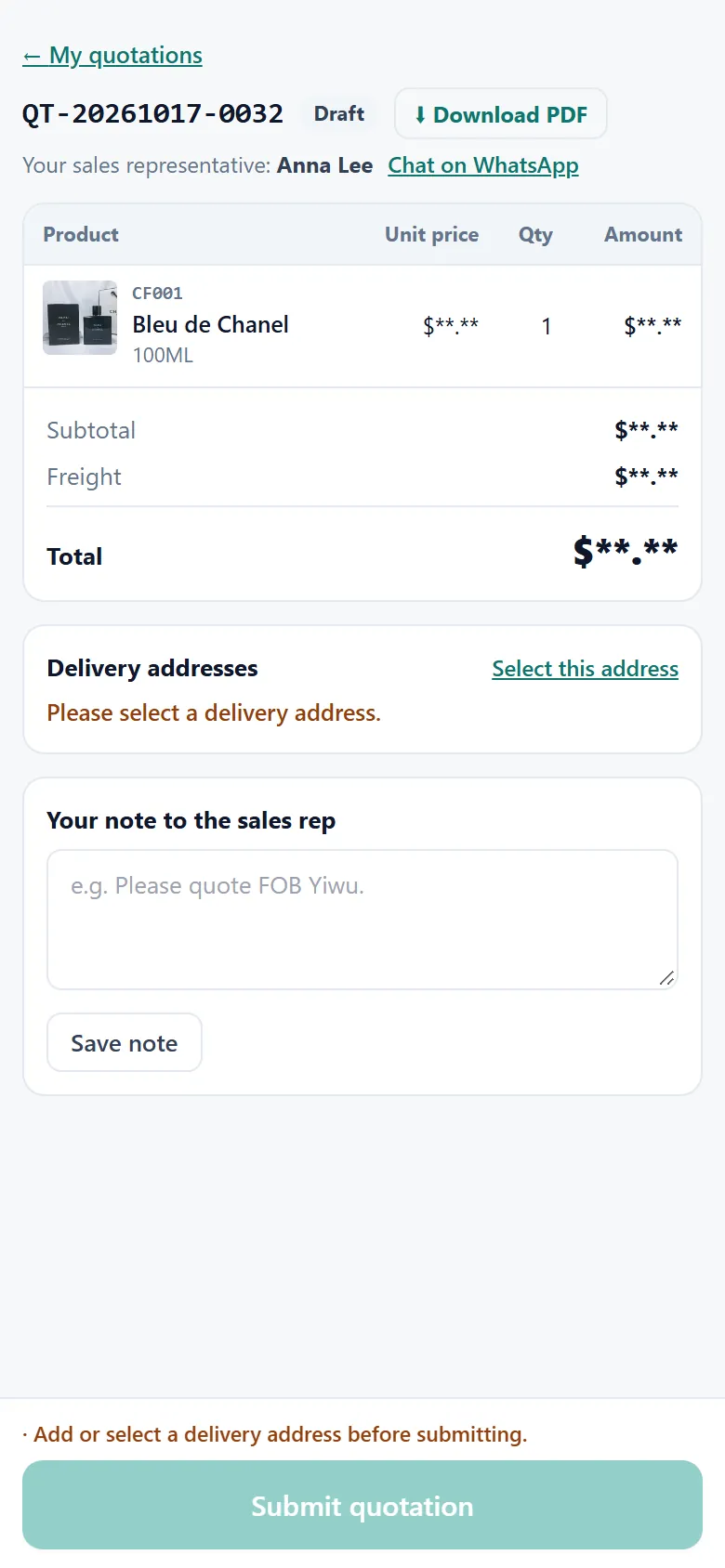
  9. Add your address

    Quotation page asking for a delivery address, with the amounts greyed out
    Quotation page asking for a delivery address, with the amounts greyed out

    An order needs a delivery address. Tap Select this address.

    some fields hidden (asterisks)
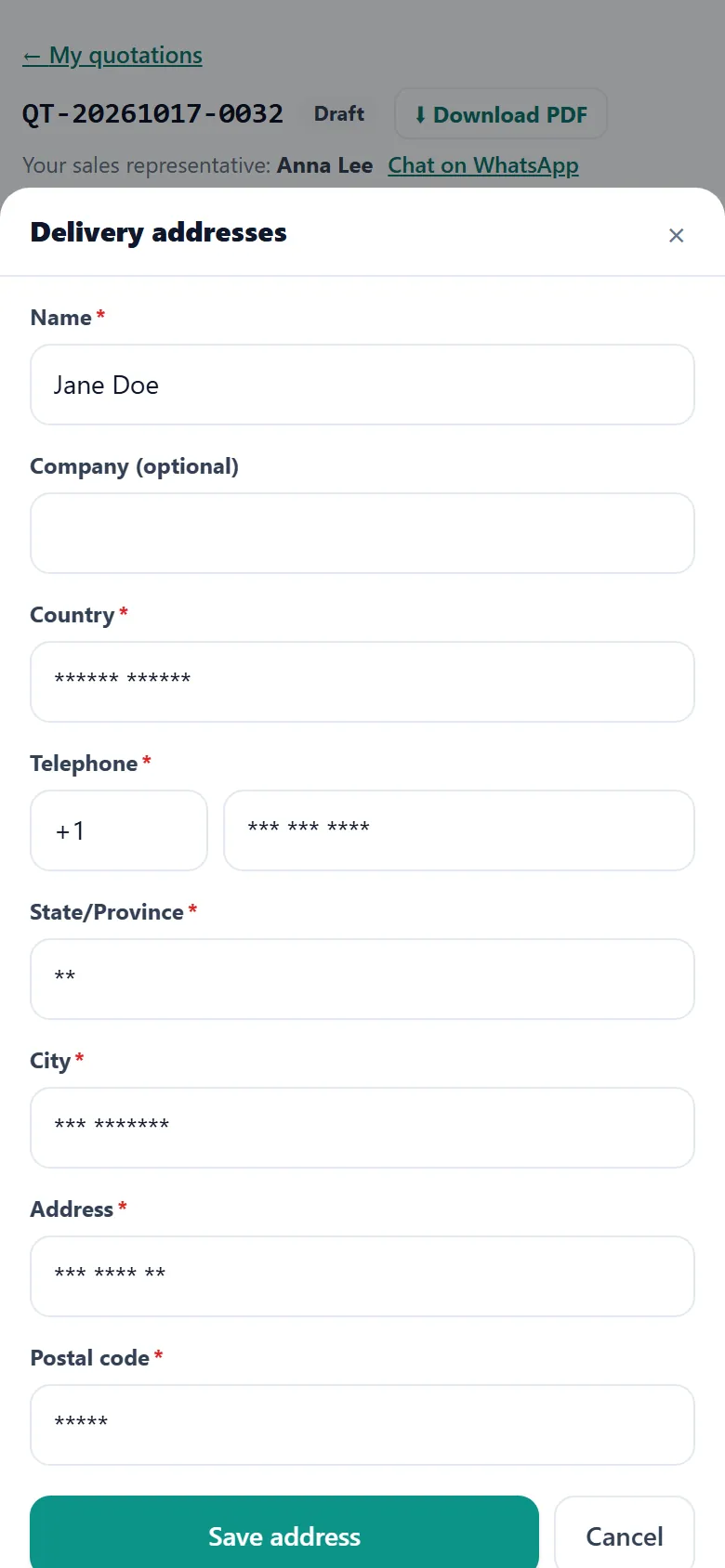
  10. Save your address

    Delivery address form with the Save address button
    Delivery address form with the Save address button

    Fill in every field marked *, then tap Save address.

    some fields hidden (asterisks)
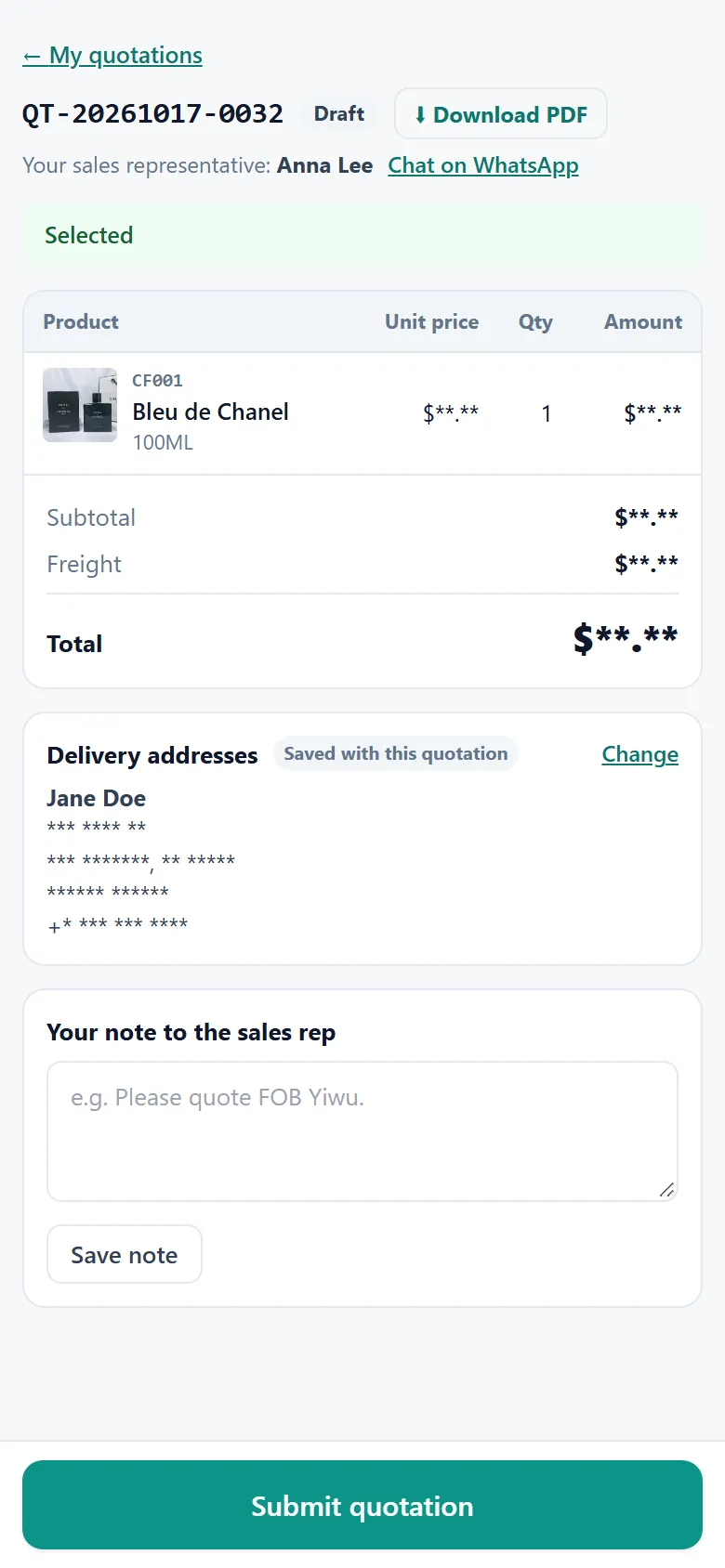
  11. Submit your order

    Quotation with the delivery address filled in and the total greyed out
    Quotation with the delivery address filled in and the total greyed out

    Check the total, then tap Submit quotation.

    some fields hidden (asterisks)
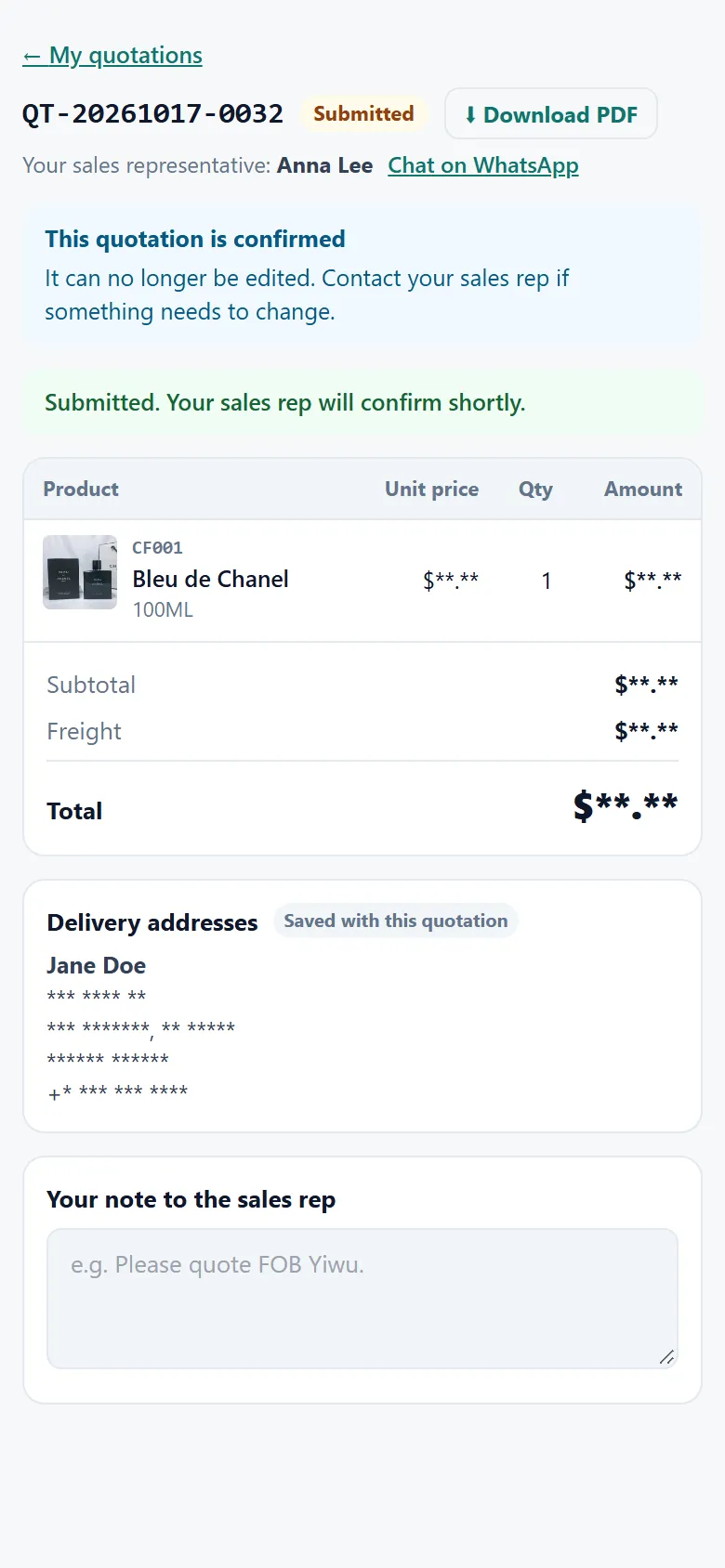
  12. You’re all set

    Submitted quotation with the status badge and Download PDF link
    Submitted quotation with the status badge and Download PDF link

    Your order is in. You can download the PDF any time.

    some fields hidden (asterisks)
← Volver